Using Meal Prep Manager
Meal Prep Manager is a really powerful tool to help you you organize and plan your meal prep! But learning how to use it is important.
Overview
The goal of Meal Prep Manager is to let you pick recipes, and add them to a plan. Adding recipes to a plan lets you get a shopping list, and a preparation list. To get started, read on and we'll show you the whole process from start to finish!
Starting your Profile
While setting up your profile is optional, it's highly recommended. There's lots of options in there, along with the ability to set a goal for weight change (that means gaining, or losing weight)!
Add a Recipe
The first thing you're going to want to do, is find a good recipe! if it's already in MPM skip on down to the planning section.
Otherwise, you'll need to add it. A good website with lots of recipes is AllRecipes. You can use whatever you'd like!
I'll be demonstrating adding this recipe.
So the first thing to do is to go to the Create a Recipe section.
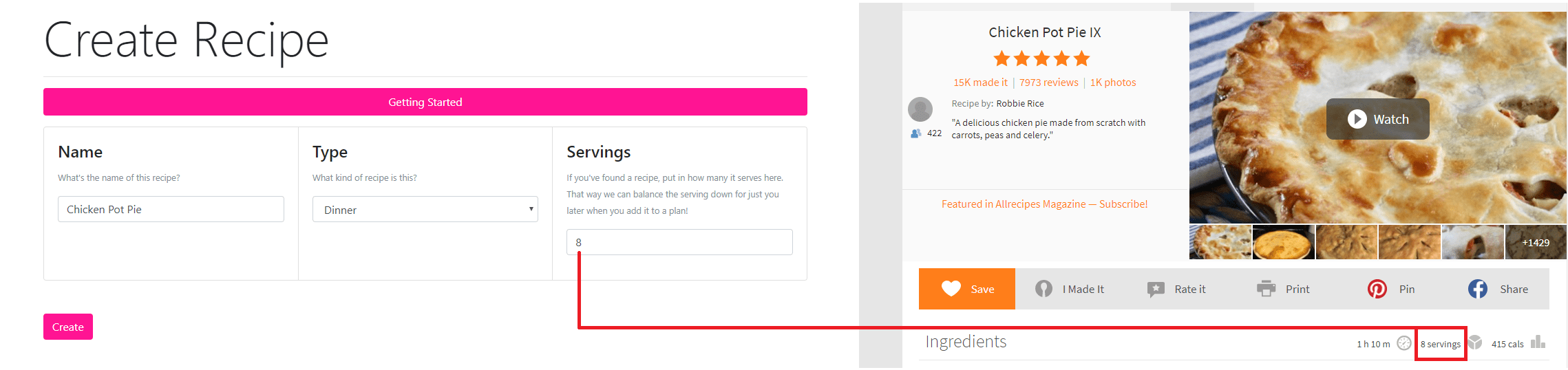
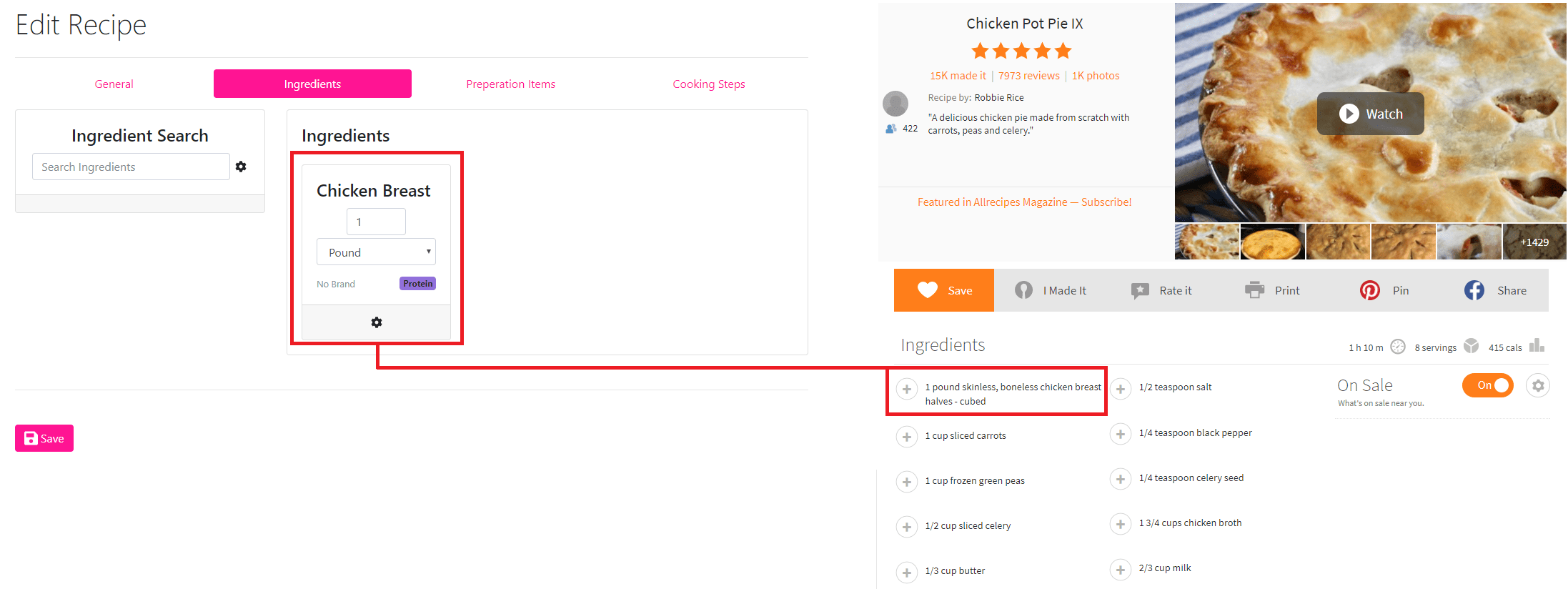
Afterwards, you'll need to start to add the ingredients as they are listed.
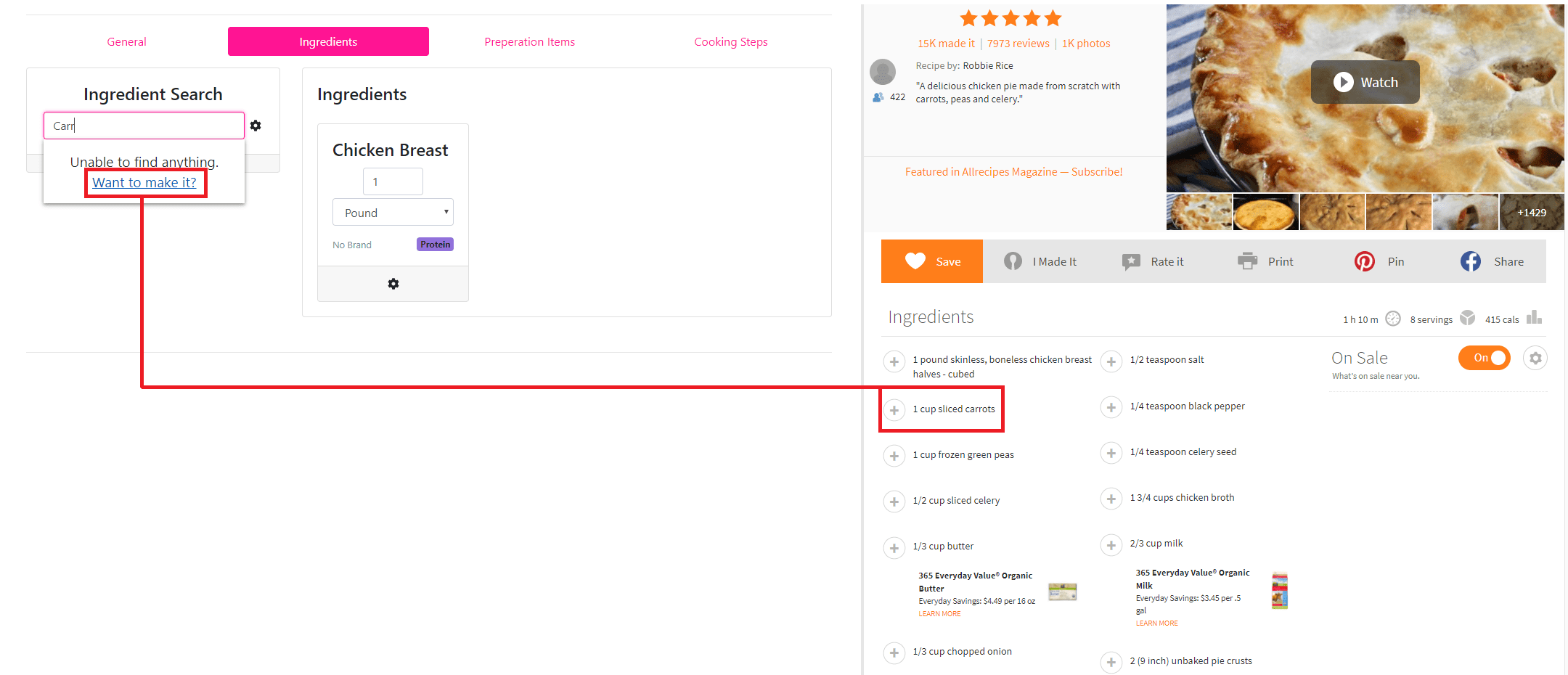
If while adding an ingredient, you can't find it, no problem, just skip on down to the Add an Ingredient section!
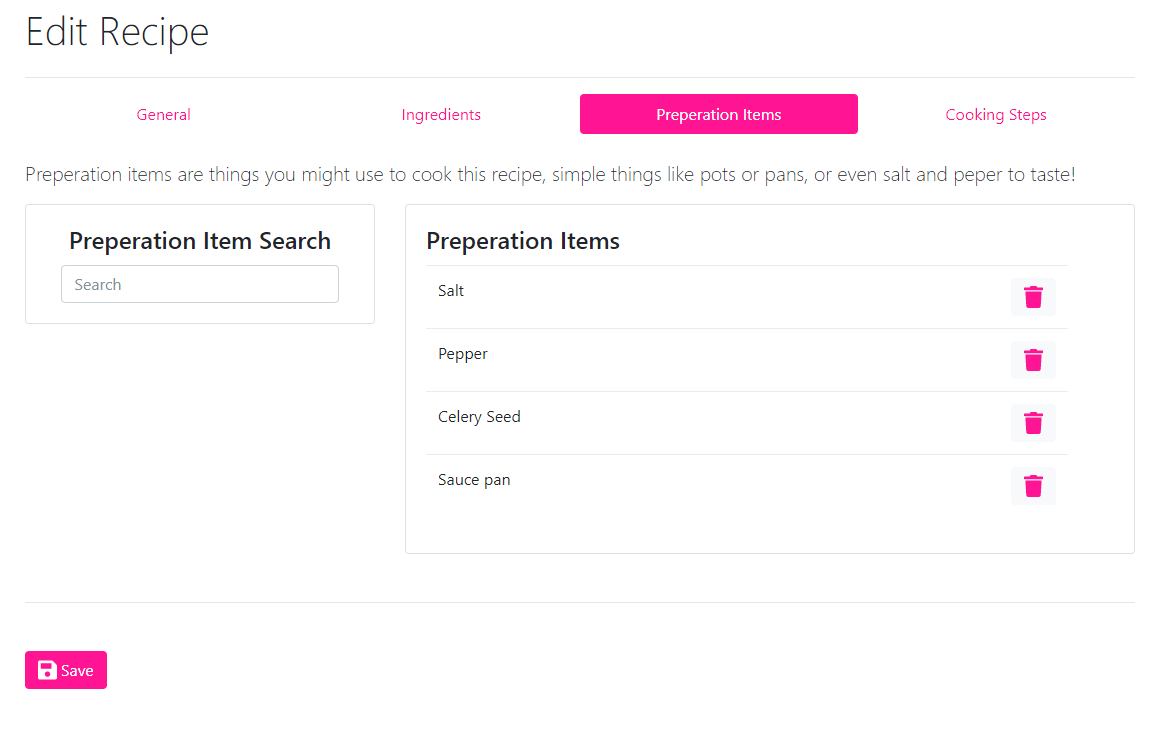
After you've finished adding all the ingredients, go ahead and add preparation items.
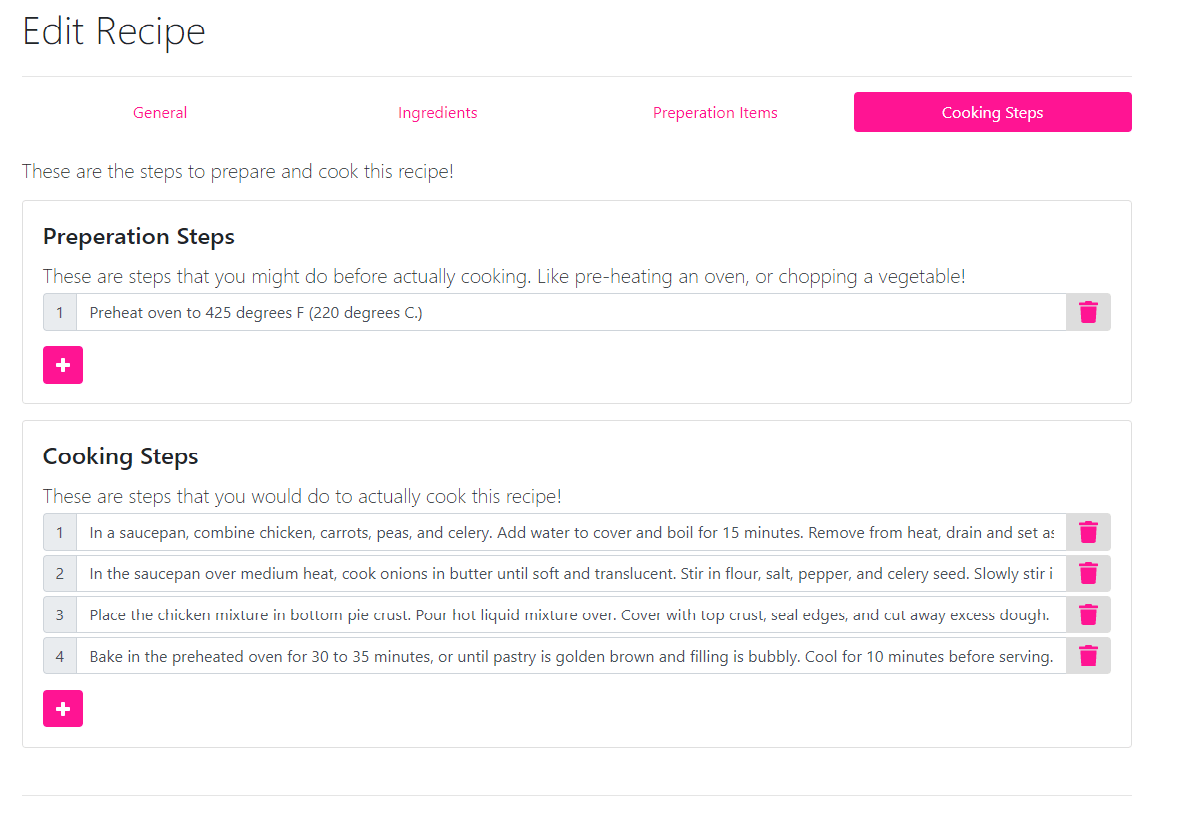
Finally, add the cooking steps!
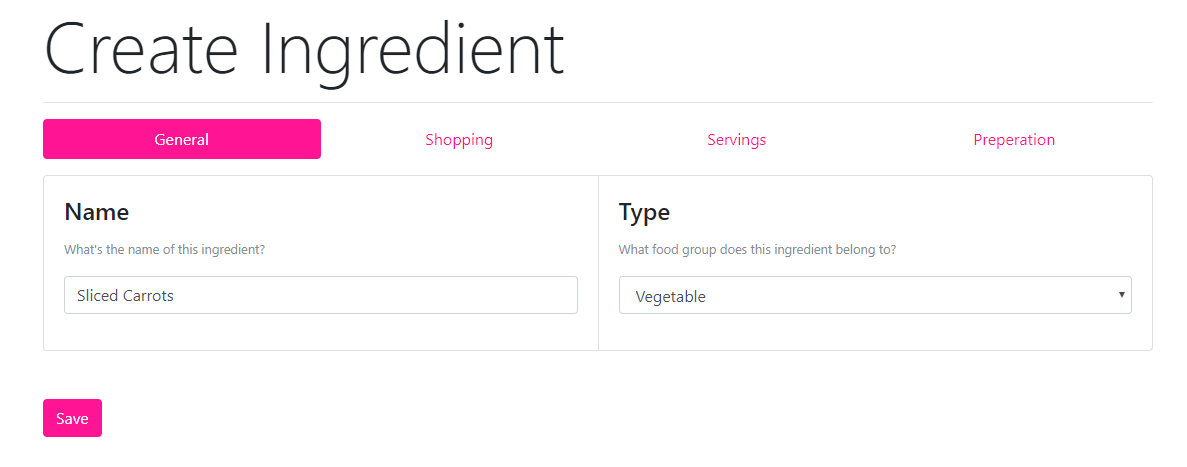
Add an Ingredient
If you need to add an ingredient, go to the create an ingredient section.
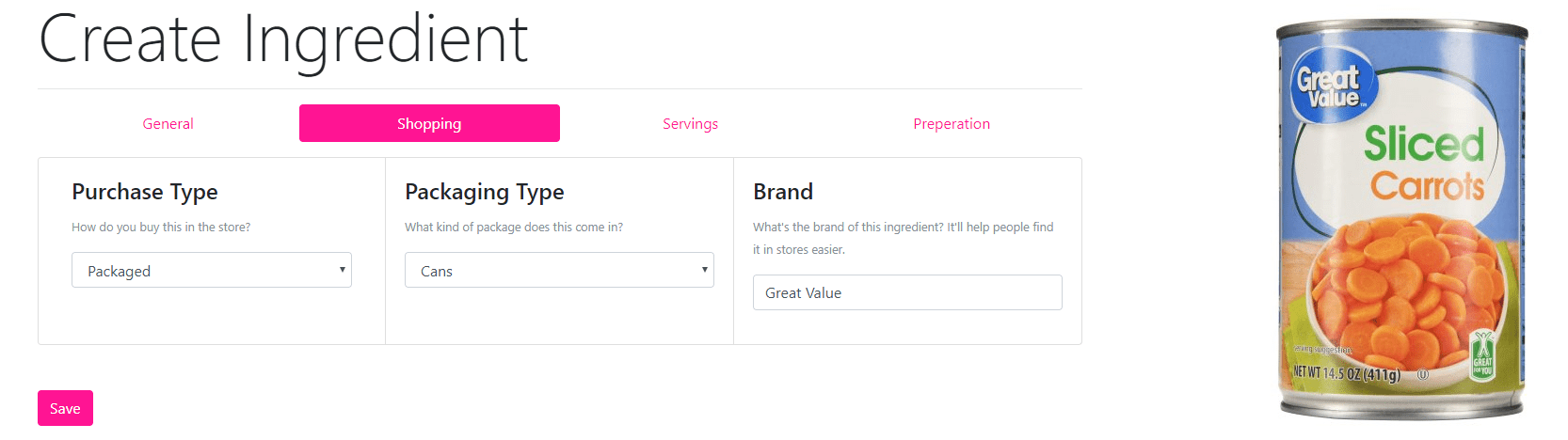
If you buy your item in a package, you'll want to fill in the information. This helps you out later while shopping.
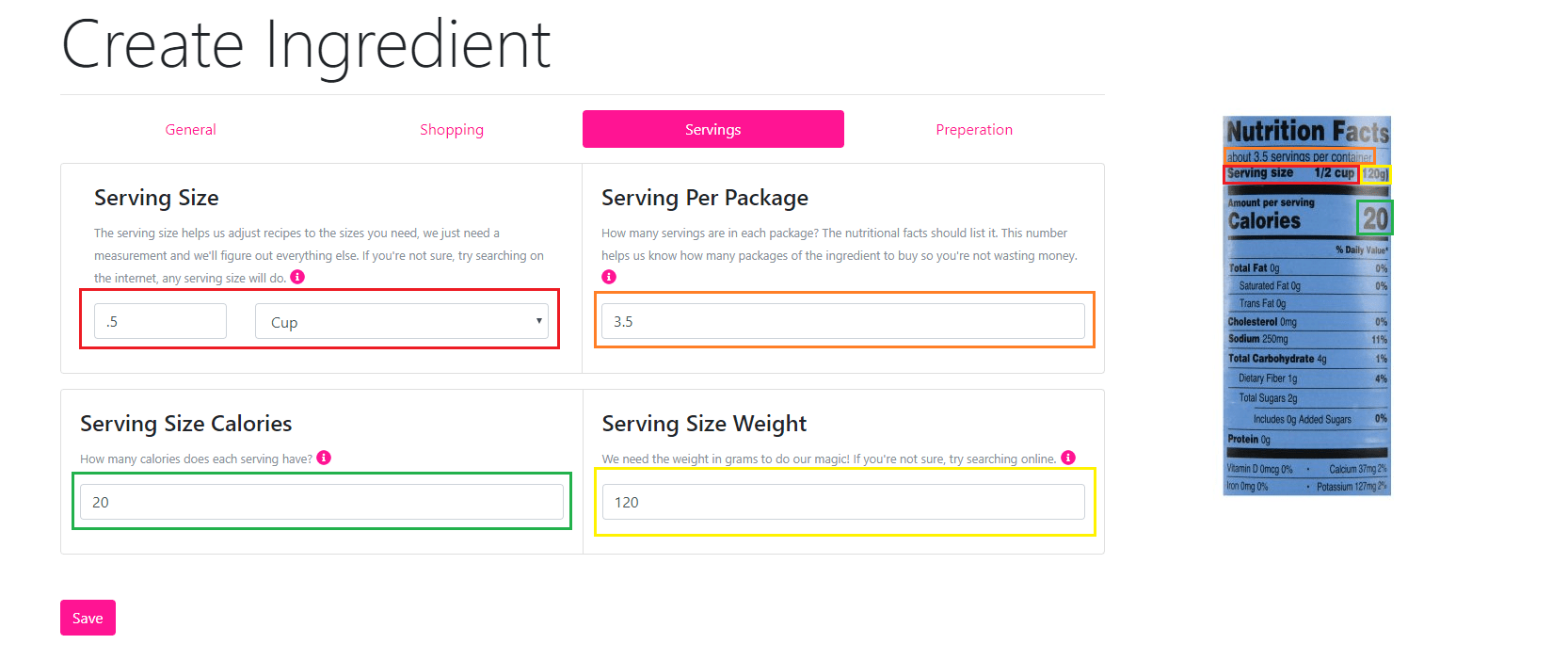
In the servings section, you put all the nutritional information.
You can further add preparation steps, if the ingredient needs some special treatment.
Creating a Plan
At this point, you're ready to add your recipes to your plan! The first step is to create a plan.

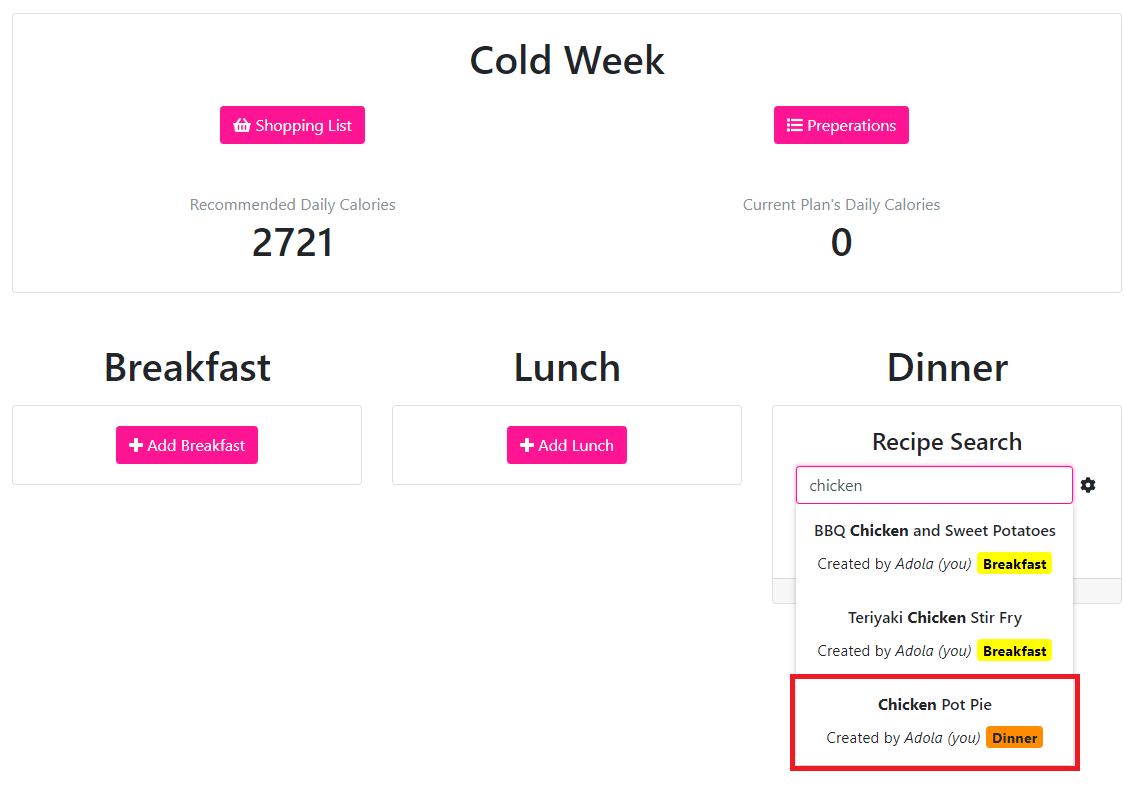
In this example, we're only adding the dinner recipe we've made, but you can add multiple breakfast, lunches or dinners.
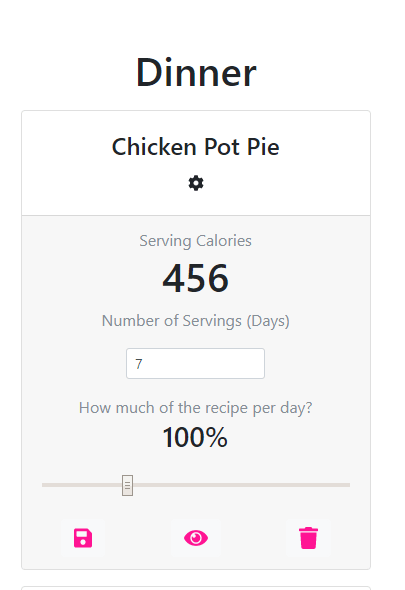
Once you've added a recipe, you can modify the numbers! You can see how many calories the current serving for the recipe is.
If it's too low, or high in calories, you can slide the bar to adjust the amount you'll be cooking. In addition, you can set how many
days you'll be eating this recipe
Shopping and Preparations
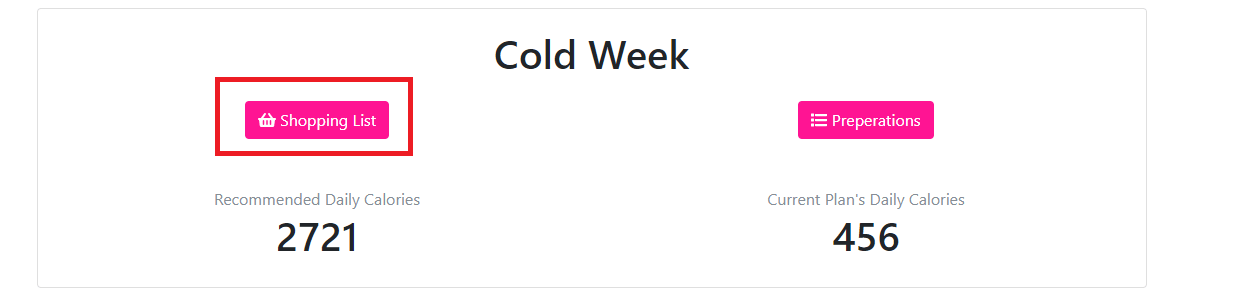
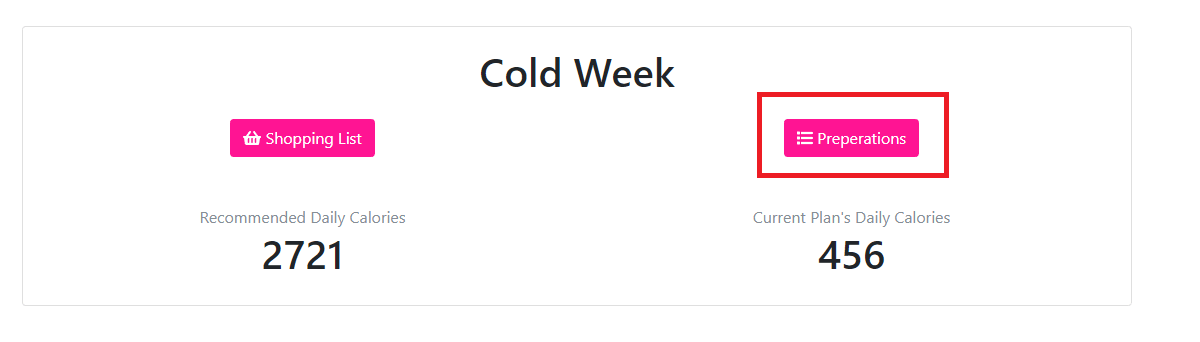
You're finally all planned out! Now you're ready to go shopping for the ingredients. You can get to your shopping list from the plan section, by clicking the Shopping List button.
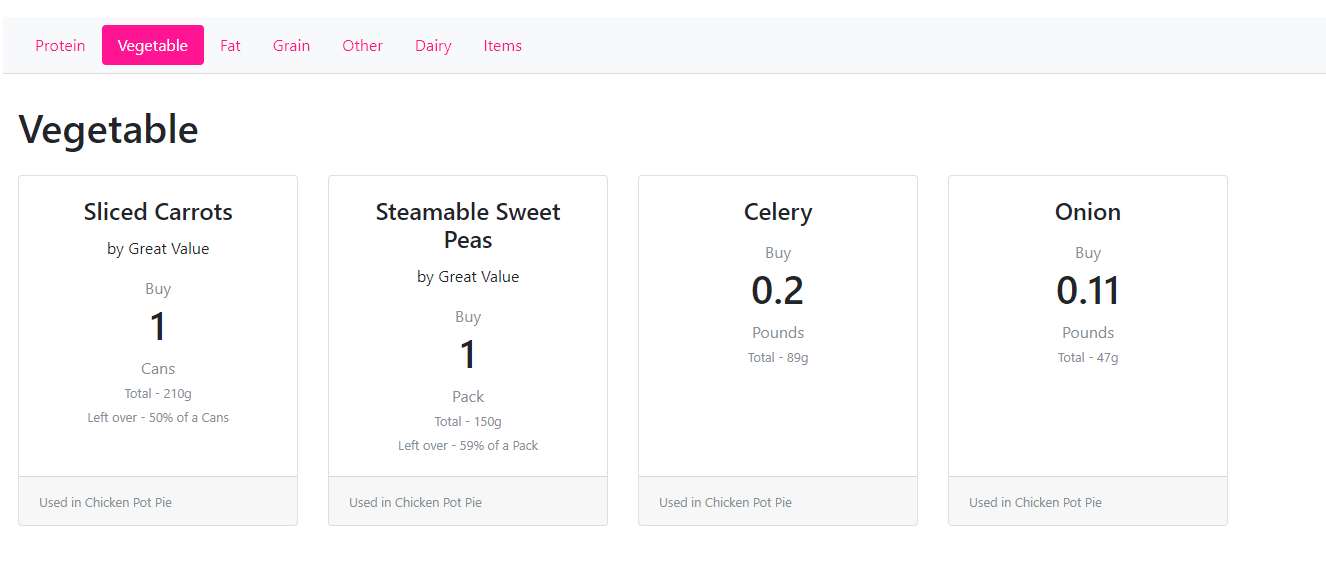
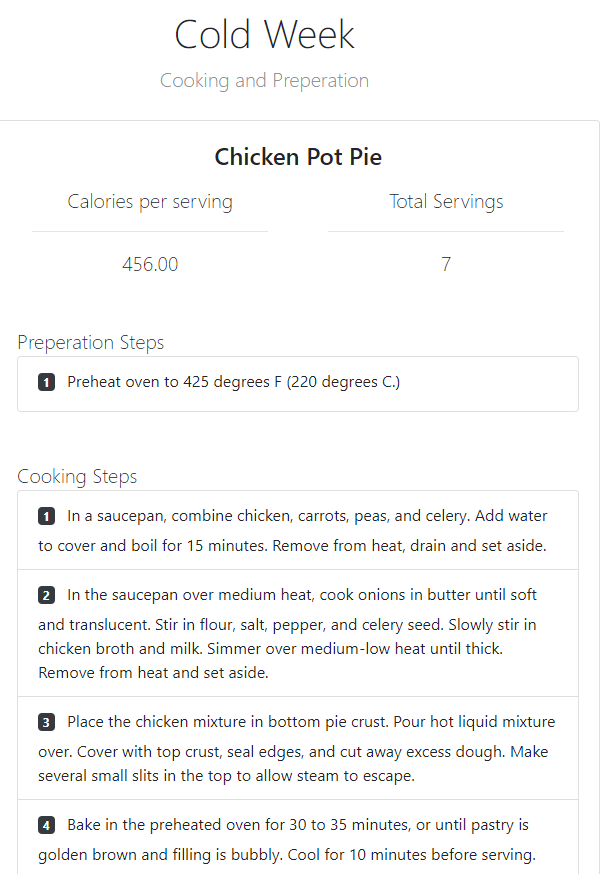
Once you've gone through your shopping list at the store, you can come home and hit the Preparation Steps button to get the instructions on how to cook each dish.
...Finally
You're all done!
The last thing for you to do is cook!